# matplotlib로 이미지 표시 (BGR→RGB 변환 필수)
plt.imshow(cv2.cvtColor(img, cv2.COLOR_BGR2RGB))
plt.axis('off')
plt.show()
* 해당 내용은 서울시립대학교 도시빅데이터융합학과 이미지 핸들링 수업을 재구성한 내용입니다.
2025학년도 2학기 이미지 핸들링 수업은 말 그대로 이미지를 다루는 수업입니다. 특히 openCV, CLIP, YOLO 등을 다루게 되는데 해당 내용을 강사님의 경험에 맞춰서 번호판 인식에 맞춰서 수업을 진행하실 예정이라고 하십니다.
1주차 : opencv 사용법
OpenCV(Open Source Computer Vision Library)는 컴퓨터 비전과 머신러닝을 위한 오픈소스 라이브러리입니다.
주요 특징
- 실시간 이미지 처리: 빠른 속도로 이미지/영상 처리 가능
- 다양한 기능: 이미지 읽기/쓰기, 색상 변환, 필터링, 객체 감지 등
- 크로스 플랫폼: Windows, Linux, macOS, Android, iOS 지원
- 다중 언어 지원: Python, C++, Java 등
BGR 색상 순서
- OpenCV는 BGR(Blue-Green-Red) 순서를 사용 (일반적인 RGB와 반대)
- 이는 역사적인 이유로 채택된 규칙
python에서 opencv를 설치하는 방법은 아래와 같다.
pip3 install opencv-python # python에서 opencv 설치# 라이브러리 임포트
import cv2
import numpy as np
from matplotlib import pyplot as plt# 이미지 읽기
img = cv2.imread('test.bmp')
# 이미지는 numpy 배열 (3차원: 높이, 너비, 채널)
print(type(img)) # <class 'numpy.ndarray'>
# 이미지 저장
cv2.imwrite('test.jpg', img) # 손실 압축
cv2.imwrite('test2.bmp', img) # 무손실
cv2.imwrite('test2.png', img) # 무손실# BGR 채널 확인
blue_img = cv2.imread('blue_grid.bmp') # [255, 0, 0]
green_img = cv2.imread('green_grid.bmp') # [0, 255, 0]
red_img = cv2.imread('red_grid.bmp') # [0, 0, 255]# BGR → RGB 변환
img_rgb = cv2.cvtColor(img_color, cv2.COLOR_BGR2RGB)
# RGB → BGR 변환 (BGR2RGB와 동일한 동작)
img_bgr = cv2.cvtColor(img_color, cv2.COLOR_RGB2BGR)
# BGR → Grayscale
img_gray = cv2.cvtColor(img_color, cv2.COLOR_BGR2GRAY)
# Grayscale → BGR (3채널로 변환하되 색상 정보 없음)
img_gray_to_color = cv2.cvtColor(img_gray, cv2.COLOR_GRAY2BGR)
# matplotlib로 이미지 표시 (BGR→RGB 변환 필수)
plt.imshow(cv2.cvtColor(img, cv2.COLOR_BGR2RGB))
plt.axis('off')
plt.show()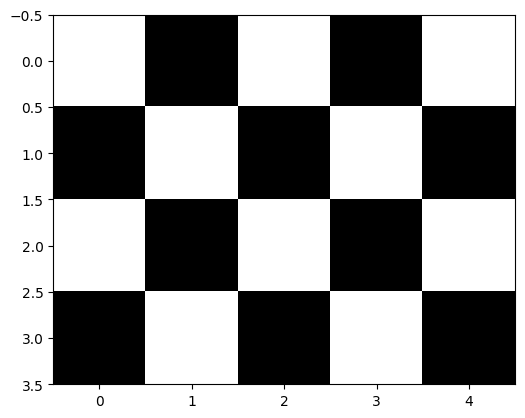
#flip
aeroplane_flip = cv2.flip(myimage, 0)   # 상하 반전
aeroplane_flip = cv2.flip(myimage, 1)   # 좌우 반전
aeroplane_flip = cv2.flip(myimage, -1)  # 상하좌우 반전

#rotate
aeroplane_rotate = cv2.rotate(myimage, cv2.ROTATE_90_CLOCKWISE)        # 시계방향 90도
aeroplane_rotate = cv2.rotate(myimage, cv2.ROTATE_180)                 # 180도
aeroplane_rotate = cv2.rotate(myimage, cv2.ROTATE_90_COUNTERCLOCKWISE) # 반시계방향 90도

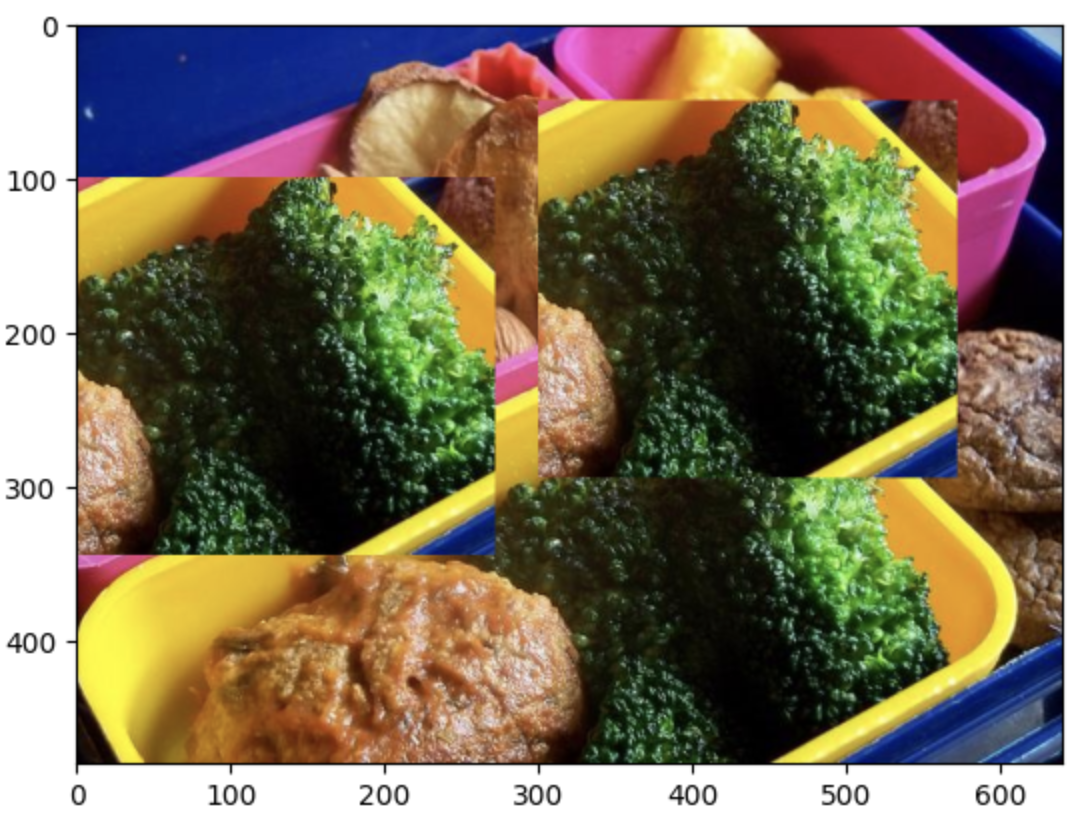
#crop
# 배열 슬라이싱으로 이미지 일부 추출
broccoli = img[235:480, 278:550]  # [높이_시작:끝, 너비_시작:끝]

# 다른 위치에 붙여넣기
img[100:345, 0:272] = broccoli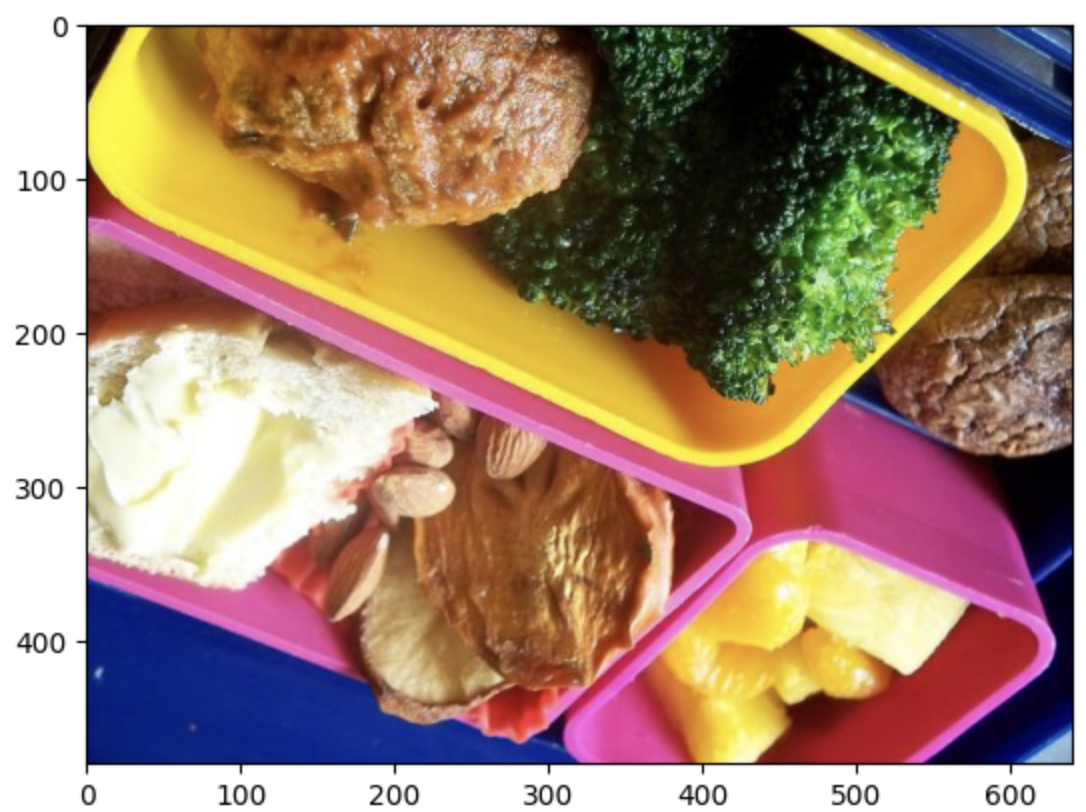

#커스텀 이미지 만들기
height, width, channel = myimage.shape

with open('myimage.txt', 'w') as f:
    f.write(f"{height}\n{width}\n{channel}\n")

    for h in range(height):
        for w in range(width):
            for c in range(channel):
                f.write(f"{myimage[h][w][c]}\n")

#텍스트 파일에서 이미지 복원
with open('myimage.txt', 'r') as f:
    height = int(f.readline().strip())
    width = int(f.readline().strip())
    channel = int(f.readline().strip())

    myimg = np.zeros((height, width, channel))

    for h in range(height):
        for w in range(width):
            for c in range(channel):
                myimg[h][w][c] = int(f.readline().strip())

    # uint8 타입 변환 필수 (0-255 범위)
    myimg = myimg.astype(np.uint8)
핵심 개념 정리
- 이미지 = 숫자 배열: 이미지는 단순히 숫자들이 담긴 NumPy 배열
- 3차원 구조: (높이, 너비, 채널) 형태
- BGR 순서: OpenCV는 BGR 채널 순서 사용
- 픽셀 값 범위: 0~255 (uint8 타입)
- 손실/무손실 압축: JPG(손실) vs BMP/PNG(무손실)
- 배열 조작 = 이미지 조작: 슬라이싱, 인덱싱으로 이미지 편집 가능
2주차 : Annotation, 이미지 라벨링
딥러닝 모델은 함수와 같습니다. 입력(이미지)을 받아서 출력(인식 결과)을 내놓습니다. 1주차에서 이미지가 숫자라는 것을 배웠다면, 2주차에서는 출력(라벨)도 숫자라는 점을 이해할 수 있습니다.
MNIST 데이터셋
손글씨 숫자를 인식하는 가장 기본적인 데이터셋입니다.
- 28x28 크기의 흑백 이미지 70,000장
- 학습용: 60,000장
- 테스트용: 10,000장
from tensorflow.keras.datasets import mnist

(x_train, y_train), (x_test, y_test) = mnist.load_data()

print(f'학습용 입력이미지: {len(x_train)}장')
print(f'테스트용 입력이미지: {len(x_test)}장')

# 샘플 시각화
plt.figure(figsize=(8, 8))
for i in range(16):
    plt.subplot(4, 4, i+1)
    plt.imshow(x_train[i], cmap='gray')
    plt.title(f"Label: {y_train[i]}")
    plt.axis('off')
plt.show()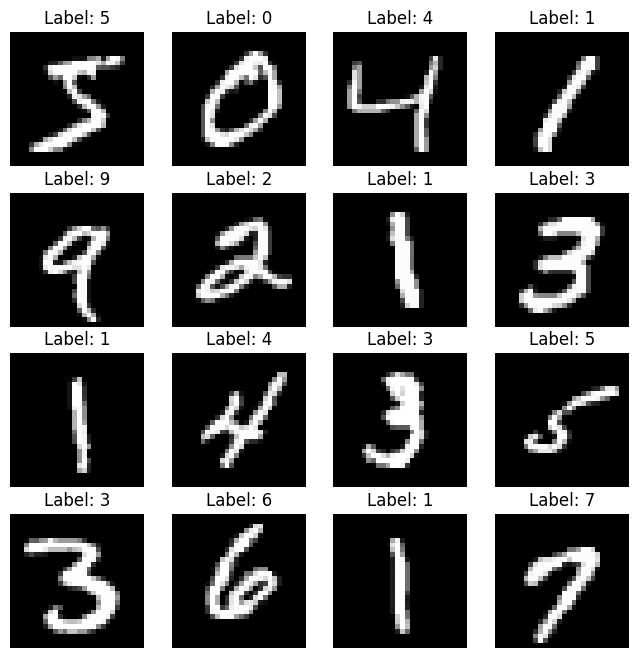
모델의 입력과 출력
입력 데이터 전처리:
- 28x28 흑백 이미지 → 28x28x1 (채널 추가)
- 정규화: 픽셀 값 0과 1 사이의 소수점 값
x_train = x_train.reshape(-1, 28, 28, 1).astype('float32') / 255.0
x_test = x_test.reshape(-1, 28, 28, 1).astype('float32') / 255.0
출력 데이터 변환:
단순히 "7"이라는 숫자가 아닌 * 10개의 확률 값으로 변환 (One-hot encoding 개념) 예시:
손글씨가 7일 경우 : [0.0001, 0.0002, 0.0001, 0.0001, 0.0002, 0.0001, 0.0001, 0.9989, 0.0001, 0.0001] 와 같이
→ 7번 인덱스가 가장 높은 확률(0.9989)을 가짐
왜 100%가 아닌가?
- AI 모델은 오차가 완전히 0이 될 수 없음
- 오차를 0에 가깝게 만드는 방향으로 학습
- 실용적으로는 99.89%면 충분히 정확한 예측
모델 학습 및 예측
import tensorflow as tf
from tensorflow.keras import layers, models

# CNN 모델 정의
model = models.Sequential([
    layers.Conv2D(16, (3,3), activation='relu', input_shape=(28,28,1)),
    layers.MaxPooling2D((2,2)),
    layers.Conv2D(32, (3,3), activation='relu'),
    layers.MaxPooling2D((2,2)),
    layers.Flatten(),
    layers.Dense(128, activation='relu'),
    layers.Dense(10, activation='softmax')  # 10개 클래스 출력
])

model.compile(optimizer='adam',
              loss='sparse_categorical_crossentropy',
              metrics=['accuracy'])

# 학습
model.fit(x_train, y_train, epochs=5, validation_split=0.2)
실전: 내가 그린 손글씨 인식시키기
import cv2
import numpy as np

# 1. 이미지 읽기 (흑백)
img = cv2.imread("my_handwriting_3.png", cv2.IMREAD_GRAYSCALE)

# 2. 전처리
img = cv2.resize(img, (28, 28))           # 크기 맞추기
img = img.astype("float32") / 255.0       # 정규화
img = img.reshape(1, 28, 28, 1)           # 배치 차원 추가

# 3. 예측
pred = model.predict(img)

# 4. 결과 확인
print("각 숫자별 확률:")
for i, p in enumerate(pred[0]):
    print(f"  숫자 {i}일 확률: {p:.6f}")

predicted_digit = np.argmax(pred[0])
print(f"\n예측 결과: {predicted_digit}")
주의사항: 배경색 문제
문제 상황:
- MNIST는 검은 배경에 흰 글씨
- 우리가 그린 이미지는 보통 흰 배경에 검은 글씨
- 이 차이로 인해 인식률이 급격히 떨어짐
해결 방법 1: 이미지 반전
# 이미지 읽기 후 반전
img = cv2.imread("3.png", cv2.IMREAD_GRAYSCALE)
img = 255 - img  # 반전

# 시각화
plt.imshow(img, cmap='gray')
plt.show()

# 이후 동일한 전처리 과정
img = cv2.resize(img, (28, 28))
img = img.astype("float32") / 255.0
img = img.reshape(1, 28, 28, 1)

pred = model.predict(img)
해결 방법 2: 반전 데이터로 재학습
from tensorflow.keras.datasets import mnist
import numpy as np

# 1. 원본 데이터 로드
(x_train, y_train), (x_test, y_test) = mnist.load_data()

# 2. 반전 데이터 생성
x_train_inverted = 255 - x_train
x_test_inverted = 255 - x_test

# 3. 원본 + 반전 데이터 합치기
x_train = np.concatenate([x_train, x_train_inverted], axis=0)
y_train = np.concatenate([y_train, y_train], axis=0)  # 라벨은 동일

x_test = np.concatenate([x_test, x_test_inverted], axis=0)
y_test = np.concatenate([y_test, y_test], axis=0)

# 4. 정규화 및 학습
x_train = x_train.reshape(-1, 28, 28, 1).astype('float32') / 255.0
x_test = x_test.reshape(-1, 28, 28, 1).astype('float32') / 255.0

new_model = models.Sequential([...])  # 동일한 구조
new_model.compile(optimizer='adam',
                  loss='sparse_categorical_crossentropy',
                  metrics=['accuracy'])

new_model.fit(x_train, y_train, epochs=5, validation_split=0.2)
이제 흰 배경/검은 배경 모두에서 잘 작동하는 모델이 완성됩니다!
다른 객체 인식으로 확장
알파벳 인식 모델을 만든다면?
- A → 0
- B → 1
- C → 2
- ...
- Z → 25
→ 26개의 출력을 가진 모델 정의 → 가장 높은 확률을 가진 인덱스가 예측된 알파벳
동물 분류 모델을 만든다면?
- 고양이 → 0
- 개 → 1
- 새 → 2
→ 3개의 출력을 가진 모델
핵심 개념: 어떤 객체든 숫자로 매핑하면 분류 문제로 해결 가능!
객체 탐지(Object Detection)
분류(Classification)와 달리, 객체의 위치까지 찾아야 합니다.
COCO128 데이터셋 다운로드
import urllib.request
import zipfile

url = "https://ultralytics.com/assets/coco128.zip"
save_path = "coco128.zip"

# 다운로드
urllib.request.urlretrieve(url, save_path)

# 압축 해제
with zipfile.ZipFile(save_path, 'r') as zip_ref:
    zip_ref.extractall()
객체 라벨링: 위치도 숫자다!
객체의 위치를 표현하는 방법은 여러 가지가 있습니다.
YOLO 형식 (정규화된 좌표):
<class_index> <x_center> <y_center> <width> <height>
각 값의 의미:
- class_index: 객체 클래스 번호 (0=사람, 1=자전거, 2=자동차 등)
- x_center: 박스 중심의 x 좌표 / 이미지 너비
- y_center: 박스 중심의 y 좌표 / 이미지 높이
- width: 박스 너비 / 이미지 너비
- height: 박스 높이 / 이미지 높이
왜 정규화를 할까?
- 이미지 크기와 무관하게 0~1 사이의 값으로 표현
- 색상 정보를 255로 나눈 것과 같은 원리
- 다양한 해상도의 이미지에 대응 가능
라벨 파일 시각화
import os
import cv2
import matplotlib.pyplot as plt

# 경로 설정
img_dir = "coco128/images/train2017"
label_dir = "coco128/labels/train2017"

img_name = "000000000009.jpg"
img_path = os.path.join(img_dir, img_name)
label_path = os.path.join(label_dir, img_name.replace(".jpg", ".txt"))

# 이미지 로드
img = cv2.imread(img_path)
img_h, img_w, _ = img.shape

# 라벨 파일 읽기
with open(label_path, 'r') as f:
    for line in f:
        class_id, x_center, y_center, width, height = map(float, line.strip().split())

        # 정규화된 좌표를 픽셀 좌표로 변환
        x_center *= img_w
        y_center *= img_h
        width *= img_w
        height *= img_h

        # 좌상단, 우하단 좌표 계산
        xmin = int(x_center - width / 2)
        ymin = int(y_center - height / 2)
        xmax = int(x_center + width / 2)
        ymax = int(y_center + height / 2)

        # 바운딩 박스 그리기
        cv2.rectangle(img, (xmin, ymin), (xmax, ymax), (0, 255, 0), 2)
        cv2.putText(img, str(int(class_id)), (xmin, ymin-10),
                    cv2.FONT_HERSHEY_SIMPLEX, 0.9, (0, 255, 0), 2)

plt.figure(figsize=(12, 8))
plt.imshow(cv2.cvtColor(img, cv2.COLOR_BGR2RGB))
plt.axis('off')
plt.show()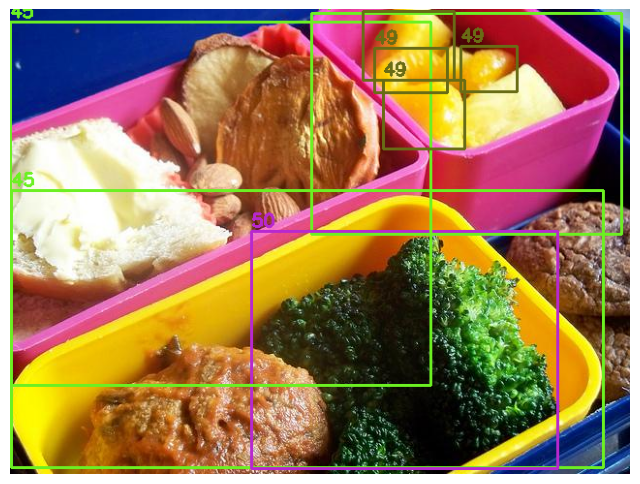
COCO 클래스 정의
# COCO 80개 클래스
names = {
    0: "person", 1: "bicycle", 2: "car", 3: "motorcycle", 4: "airplane",
    5: "bus", 6: "train", 7: "truck", 8: "boat", 9: "traffic light",
    # ... (총 80개)
}
라벨링 형식 비교
Pascal VOC 형식:
<xmin>100</xmin>  <!-- 픽셀 좌표 -->
<ymin>150</ymin>
<xmax>250</xmax>
<ymax>300</ymax>
<name>person</name>
YOLO 형식:
0 0.5 0.5 0.3 0.4 # class x_center y_center width height (정규화)
변환 공식:
# YOLO → Pascal VOC
xmin = (x_center - width/2) * image_width
ymin = (y_center - height/2) * image_height
xmax = (x_center + width/2) * image_width
ymax = (y_center + height/2) * image_height

# Pascal VOC → YOLO
x_center = (xmin + (xmax - xmin)/2) / image_width
y_center = (ymin + (ymax - ymin)/2) / image_height
width = (xmax - xmin) / image_width
height = (ymax - ymin) / image_height
실습: 라벨링 도구 사용하기
labelImg 설치 (Python 3.9 권장):
# Ubuntu 예시
git clone https://github.com/HumanSignal/labelImg.git
cd labelImg
conda create -y -n label python=3.9
conda activate label
sudo apt-get install pyqt5-dev-tools
pip install -r requirements/requirements-linux-python3.txt
make qt5py3

# 실행
python labelImg.py
labelImg 사용법:
- Open Dir: 이미지 폴더 선택
- Create RectBox: 바운딩 박스 그리기
- 클래스 이름 입력
- Save: 자동으로 YOLO 형식 .txt 파일 생성
핵심 개념 정리
- 라벨링도 숫자: 클래스명 → 숫자 인덱스, 위치 → 정규화된 좌표
- 정규화의 중요성: 이미지 크기와 무관하게 0~1 범위로 통일
- 형식의 다양성: YOLO, Pascal VOC 등 다양한 형식 존재
- 수작업의 번거로움: labelImg 같은 도구로도 시간 소모가 큼
- 자동화의 필요성: 이미지 핸들링 기술로 라벨링 자동화 가능
3주차 : Perspective Transform (원근 변환)
번호판 인식 시스템의 핵심 기술인 원근 변환을 배웁니다. 기울어진 번호판을 정면으로 보이게 만들고, 다른 차량 이미지에 합성하는 과정을 실습합니다.
학습 목표
- 기울어진 번호판을 정면 뷰로 변환 (Deskew)
- 정면 번호판을 다른 차량에 합성
- Annotation 좌표도 함께 변환
데이터 준비
# 차량 이미지 2장 다운로드
!wget -O license_plate1.jpg "https://storage.googleapis.com/kagglesdsdata/datasets/686454/1203932/images/Cars134.png?..."
!wget -O license_plate2.jpg "https://storage.googleapis.com/kagglesdsdata/datasets/686454/1203932/images/Cars120.png?..."
import cv2 as cv
import numpy as np
from matplotlib import pyplot as plt
# 이미지 로드 및 확인
license_plate1_image = cv.imread('license_plate1.jpg')
license_plate2_image = cv.imread('license_plate2.jpg')
plt.figure(figsize=(12, 6))
plt.subplot(1, 2, 1)
plt.imshow(cv.cvtColor(license_plate1_image, cv.COLOR_BGR2RGB))
plt.title('Car 1 (with plate)')
plt.subplot(1, 2, 2)
plt.imshow(cv.cvtColor(license_plate2_image, cv.COLOR_BGR2RGB))
plt.title('Car 2 (target)')
plt.show()
Perspective Transform의 원리
핵심 개념:
Source points (원본 4개 꼭짓점)
Destination points (목표 4개 꼭짓점)
변환 행렬(Transformation Matrix)
Source Points → [Transformation Matrix] → Destination Points
OpenCV는 4개의 점 대응 관계만 알면 자동으로 변환 행렬을 계산해줍니다!
# 1. 원본 번호판의 4개 꼭짓점 (수동으로 찾음)
source_pts = np.float32([
    [80, 151],   # 좌상단
    [131, 155],  # 우상단
    [131, 173],  # 우하단
    [80, 165]    # 좌하단
])

# 2. 목표 좌표 (정면으로 펼친 직사각형)
deskewed_pts = np.float32([
    [0, 0],       # 좌상단
    [520, 0],     # 우상단
    [520, 110],   # 우하단
    [0, 110]      # 좌하단
])

# 3. 변환 행렬 계산
deskew_matrix = cv.getPerspectiveTransform(source_pts, deskewed_pts)

# 4. 변환 적용
license_plate1_image = cv.imread('license_plate1.jpg')
deskewed_plate = cv.warpPerspective(
    license_plate1_image,
    deskew_matrix,
    (520, 110)  # 출력 이미지 크기
)

# 5. 결과 확인
plt.figure(figsize=(10, 4))
plt.subplot(1, 2, 1)
plt.imshow(cv.cvtColor(license_plate1_image[140:180, 70:140], cv.COLOR_BGR2RGB))
plt.title('Original (Skewed)')

plt.subplot(1, 2, 2)
plt.imshow(cv.cvtColor(deskewed_plate, cv.COLOR_BGR2RGB))
plt.title('Deskewed (Front View)')
plt.show()
결과: 기울어진 번호판이 깔끔한 정면 뷰로 변환됩니다!
Step 2: 정면 번호판 → 다른 차량에 합성
# 1. 목표 위치의 4개 꼭짓점 (차량2의 번호판 위치)
target_pts = np.float32([
    [159, 179],  # 좌상단
    [248, 180],  # 우상단
    [248, 198],  # 우하단
    [159, 198]   # 좌하단
])

# 2. 정면 뷰 → 목표 위치 변환 행렬
warp_matrix = cv.getPerspectiveTransform(deskewed_pts, target_pts)

# 3. 변환 적용
warped_plate = cv.warpPerspective(
    deskewed_plate,
    warp_matrix,
    (400, 265)  # 차량2 이미지 크기
)

plt.imshow(cv.cvtColor(warped_plate, cv.COLOR_BGR2RGB))
plt.title('Warped to Target Position')
plt.show()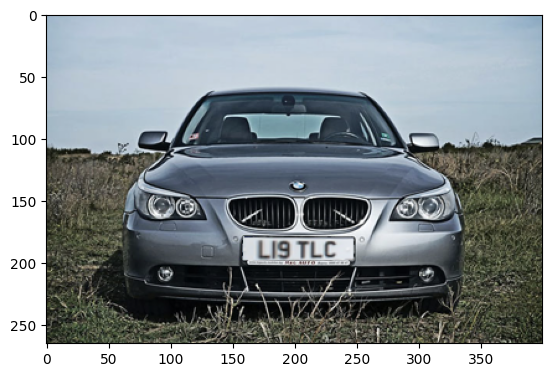
Step 3: 마스크를 이용한 자연스러운 합성
단순히 이미지를 덮어쓰면 네모난 경계가 보입니다. 마스크를 사용하여 번호판 영역만 정확히 합성합니다.
# 1. 정면 번호판과 같은 크기의 흰색 마스크 생성
deskewed_mask = np.zeros_like(deskewed_plate)
deskewed_mask.fill(255)  # 모든 픽셀을 흰색으로

plt.imshow(cv.cvtColor(deskewed_mask, cv.COLOR_BGR2RGB))
plt.title('Deskewed Mask')
plt.show()

# 2. 마스크에도 동일한 변환 적용
mask_image = cv.warpPerspective(
    deskewed_mask,
    warp_matrix,
    (400, 265)
)

plt.imshow(cv.cvtColor(mask_image, cv.COLOR_BGR2RGB))
plt.title('Warped Mask')
plt.show()

# 3. 마스크 영역만 합성
license_plate2_image = cv.imread('license_plate2.jpg')

# 마스크가 흰색(255)인 부분만 번호판 픽셀로 교체
license_plate2_image[mask_image == (255, 255, 255)] = \
    warped_plate[mask_image == (255, 255, 255)]

plt.figure(figsize=(12, 8))
plt.imshow(cv.cvtColor(license_plate2_image, cv.COLOR_BGR2RGB))
plt.title('Final Result')
plt.axis('off')
plt.show()

# 저장
cv.imwrite('result.jpg', license_plate2_image)
결과: 차량1의 번호판이 차량2에 자연스럽게 합성됩니다!
Annotation 좌표도 함께 변환하기
이미지만 변환하면 끝이 아닙니다. Annotation 좌표도 함께 변환해야 합니다!
원본 Annotation 읽기 (Pascal VOC 형식)
import xml.etree.ElementTree as ET

annotations = []

# XML 파일 파싱
tree = ET.parse('original.xml')
root = tree.getroot()

# 이미지 크기 정보
size = root.find('size')
image_width = int(size.find('width').text)
image_height = int(size.find('height').text)
depth = int(size.find('depth').text)

# 객체 정보 추출
objects = root.findall('object')
for obj in objects:
    name = obj.find('name').text
    bndbox = obj.find('bndbox')
    xmin = int(bndbox.find('xmin').text)
    ymin = int(bndbox.find('ymin').text)
    xmax = int(bndbox.find('xmax').text)
    ymax = int(bndbox.find('ymax').text)

    annotations.append({
        'name': name,
        'xmin': xmin,
        'ymin': ymin,
        'xmax': xmax,
        'ymax': ymax
    })
바운딩 박스 좌표 변환
import cv2 as cv
import numpy as np

# 이전에 사용한 변환 행렬
source_pts = np.float32([[80, 151], [131, 155], [131, 173], [80, 165]])
target_pts = np.float32([[159, 179], [248, 180], [248, 198], [159, 198]])
warp_matrix = cv.getPerspectiveTransform(source_pts, target_pts)

transformed_annotations = []

for ann in annotations:
    # 바운딩 박스의 4개 꼭짓점
    corners = np.float32([
        [ann['xmin'], ann['ymin']],  # 좌상단
        [ann['xmax'], ann['ymin']],  # 우상단
        [ann['xmax'], ann['ymax']],  # 우하단
        [ann['xmin'], ann['ymax']]   # 좌하단
    ]).reshape(-1, 1, 2)

    # 좌표 변환
    transformed_corners = cv.perspectiveTransform(corners, warp_matrix)

    # 변환된 좌표에서 최소/최대값 추출
    transformed_corners = transformed_corners.reshape(-1, 2)
    new_xmin = int(np.min(transformed_corners[:, 0]))
    new_ymin = int(np.min(transformed_corners[:, 1]))
    new_xmax = int(np.max(transformed_corners[:, 0]))
    new_ymax = int(np.max(transformed_corners[:, 1]))

    transformed_annotations.append({
        'name': ann['name'],
        'xmin': new_xmin,
        'ymin': new_ymin,
        'xmax': new_xmax,
        'ymax': new_ymax
    })
새로운 Annotation XML 파일 생성
import xml.etree.ElementTree as ET
from xml.dom import minidom

# XML 루트 생성
annotation = ET.Element('annotation')

# 파일명
filename = ET.SubElement(annotation, 'filename')
filename.text = 'result.jpg'

# 이미지 크기
size = ET.SubElement(annotation, 'size')
width = ET.SubElement(size, 'width')
height = ET.SubElement(size, 'height')
depth_elem = ET.SubElement(size, 'depth')
width.text = str(image_width)
height.text = str(image_height)
depth_elem.text = str(depth)

# 객체 정보 추가
for ann in transformed_annotations:
    obj = ET.SubElement(annotation, 'object')

    name = ET.SubElement(obj, 'name')
    name.text = ann['name']

    bndbox = ET.SubElement(obj, 'bndbox')
    xmin = ET.SubElement(bndbox, 'xmin')
    ymin = ET.SubElement(bndbox, 'ymin')
    xmax = ET.SubElement(bndbox, 'xmax')
    ymax = ET.SubElement(bndbox, 'ymax')

    xmin.text = str(ann['xmin'])
    ymin.text = str(ann['ymin'])
    xmax.text = str(ann['xmax'])
    ymax.text = str(ann['ymax'])

# Pretty print를 위한 포맷팅
xml_str = minidom.parseString(ET.tostring(annotation)).toprettyxml(indent="  ")

# 파일 저장
with open('result.xml', 'w') as f:
    f.write(xml_str)

print("새로운 annotation 파일 생성 완료: result.xml")
변환된 바운딩 박스 시각화
license_plate2_image = cv.imread('license_plate2.jpg')

for ann in transformed_annotations:
    cv.rectangle(
        license_plate2_image,
        (ann['xmin'], ann['ymin']),
        (ann['xmax'], ann['ymax']),
        (0, 0, 255),  # 빨간색
        2
    )
    cv.putText(
        license_plate2_image,
        ann['name'],
        (ann['xmin'], ann['ymin'] - 10),
        cv.FONT_HERSHEY_SIMPLEX,
        0.9,
        (0, 0, 255),
        2
    )

plt.figure(figsize=(12, 8))
plt.imshow(cv.cvtColor(license_plate2_image, cv.COLOR_BGR2RGB))
plt.title('Transformed Bounding Box')
plt.axis('off')
plt.show()
```

### 주의사항: 왜곡 문제

**발견된 문제:**
* 변환 후 바운딩 박스 주변에 의도하지 않은 공간 발생
* 번호판의 **실제 4개 꼭짓점**이 아닌 **사각형 바운딩 박스**를 변환했기 때문

**원인:**
```
원본 (기울어진 번호판):
  [xmin, ymin] -------- [xmax, ymin]
       |                    |
       |  실제 번호판 영역    |
       |                    |
  [xmin, ymax] -------- [xmax, ymax]
기울어진 번호판의 실제 영역은 평행사변형인데, 직사각형 바운딩 박스로 근사하면 불필요한 배경이 포함됩니다.
해결 방안:
- 실제 4개 꼭짓점을 직접 라벨링: 더 정확하지만 수작업 필요
- Segmentation 기법 사용: 픽셀 단위로 정확한 영역 추출
- 기울기 보정: Skew가 큰 경우 변환 전에 회전 보정
핵심 개념 정리
- Perspective Transform: 4개 점 대응으로 원근 변환 가능
- 마스크 활용: 자연스러운 이미지 합성의 핵심
- Annotation 변환: 이미지뿐 아니라 좌표도 함께 변환 필수
- 왜곡 주의: 바운딩 박스 변환 시 Skew 정도에 따라 오차 발생
- 실용적 응용: 번호판 인식, 문서 스캔 앱 등에 활용
이렇게 1~3주차 내용을 정리했습니다!
- 1주차: 이미지는 숫자
- 2주차: 라벨도 숫자
- 3주차: 좌표 변환도 숫자 연산
'대학원 수업 > 이미지 핸들링' 카테고리의 다른 글
| 이미지 핸들링 : 번호판 이미지 생성 총정리 (1) | 2025.11.25 |
|---|---|
| [이미지 핸들링] 6,7 주차 수업 내용 정리 (0) | 2025.10.23 |
| [이미지 핸들링] 4,5 주차 수업 내용 정리 (0) | 2025.10.23 |